Mostrando entradas con la etiqueta Java. Mostrar todas las entradas

cannot find symbol symbol : method fail(java.lang.String) JUnit

Error:
    cannot find symbol symbol  : method fail(java.lang.String)

Descripción
    Al intentar usar el método fail() envía el error mostrado.

Solución:
   import static org.junit.Assert.fail;
Leer más...

Instalar Netbeans en Linux


Luego de haber instalado JDK y configurado las variables de entornos.
Podemos proceder a la instalación de Netbeans.

1 - Entramos al sitio de Netbeans y descargamos la versión actual.

2 - Luego de haber descargado la versión actual, como usuario le damos los permisos necesarios:
chmod a+x netbeans-*-linux.sh

3 - Ejecutamos sh netbeans-*-javaee-linux.sh 4 - Seleccionamos el contenedor que necesitamos entre Tomcat y glassfish, si gustan puede ser ambos y presionamos el botón siguiente.


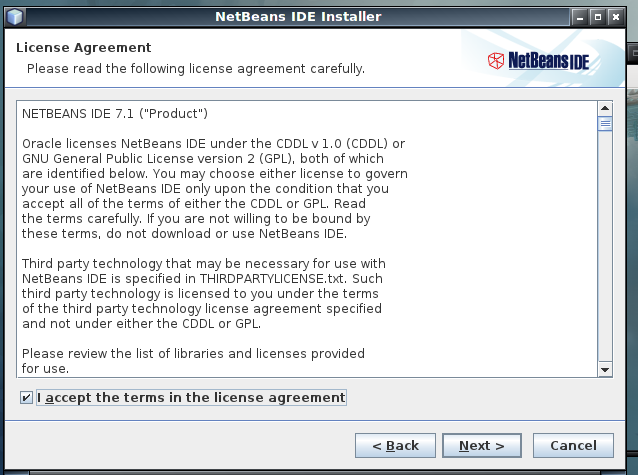
5 - Aceptamos el contrato


6 - Aceptamos el contrato de la instalación de JUnit


7 - Verificamos si el JDK seleccionado es que el que necesitamos y presionamos el botón siguiente.


8 - Verificamos la ubicación para la instalación de glassfish y presionamos el botón siguiente.


9 - Revisamos el resumen de la instalación a realizar y luego presionamos el botón Instalar.


10 - Esperamos unos minutos mientras se realiza la instalación.


11 - Presionamos el botón Finalizar


12 - Buscamos el menú Programación y econtraremos Netbeans y pondemos iniciarlo.


13 - Y ya tenemos netbeans listo para programar.
Leer más...

Instalar JDK Linux


Estuve instalando jdk para Debian y Fedora y voy a colocar lo que hice tanto para instalar el JDK y configurar la variable JAVA_HOME:

Debian:
1 - Entrar el sitio de Oracle y descargar la versión que vamos a usar.
      Aquí están todas:
        Índice de descarga
     y acá la que voy a usar en esta entrada
        jdk-6u30-download-1377139
2 - Utilizando el comando su nos identificamos como root.

3 - Crear el directorio java:
     mkdir /usr/java
4 - Le damos permiso al usuario como dueño:
       Con la siguiente instrucción le decimos que cambie el nuevo dueño a arielb 
       para el directorio /usr/java/ y que nos muestre un mensaje de lo que cambia (-c) 
       y que lo haga de forma recursiva (-R).
chown -cR arielb /usr/java/
    Recuerda cambiar arielb por tú usuario.
5 - Vamos a colocar el archivo binario que descargamos del sitio de Oracle.
      Con esta instrucción le decimos que nos copie(cp) y nos muestre(-v) lo que está copiando.
cp -v /home/arielb/Descargas/jdk-6u30-linux-x64.bin /usr/java/
6 - El siguiente paso es darle permiso de ejecución:
     Con esta instrucción le decimos que le de permiso(chmod) de ejecución(x) al binario para todos los usuarios(a).
     chmod a+x /usr/java/jdk-6u30-linux-x64.bin
7 - Nos colocamos en el directorio donde está el binario.
      cd /usr/java/
8 - Ejecutamos el binario.
    ./jdk-6u30-linux-x64.bin

9 - Como último paso editaremos el archivo bashrc tanto del usuario root como de nuestro usuario, esto lo haremos para que crear la variable JAVA_HOME de forma permanente.
Primero modificamos nuestro usuario:
   gedit /home/arielb/.bashrc
Al abrir el archivo colocamos lo siguiente:
   export JAVA_HOME=/usr/java/jdk1.6.0_30/
   export PATH=$JAVA_HOME/bin:$PATH


Luego para verificar si las variables fueron bien configuradas puedes escribir:
java -version


Resultado:
java version "1.6.0_30"
Java(TM) SE Runtime Environment (build 1.6.0_30-b12)
Java HotSpot(TM) 64-Bit Server VM (build 20.5-b03, mixed mode)


Fedora:

1 - Descargamos  del sitio de Oracle
     jdk-6u30
2 -  Cambiamos al usuario root:
      su
3 - Le damos los permisos necesarios al archivo:
     chmod a+x  jdk-6u30-linux-x64-rpm.bin
4 -  Ejecutamos:
      ./jdk-6u30-linux-x64-rpm.bin

5 - Configurar las variables JAVa_HOME y PATH.
Para que sea para todos los usuarios lo podemos abriendo el archivo con vi, de la siguiente forma:
vi .bash_profile   //a nivel del usuario
y agregamos:

export JAVA_HOME=/usr/java/jdk1.6.0_30/
export PATH=$JAVA_HOME/bin:$PATH


Leer más...

Leer excel - POI

Apache Poi es un proyecto establecido para crear y mantener una solución para los documentos Microsoft.
Con el API del mismo nombre podemos leer y escribir archivos Excel como también Word y PowerPoint.
En este tema hablaremos de un grupo de clases que es de gran ayuda en nuestras labores como por ejemplo en la manipulación de archivos Excel:

• POIFSFileSystem
• HSSFWorkbook
• HSSFSheet
• Row
• Cell

POIFSFileSystem : Esta clase es la principal del sistema POIFS encargada de la gestión en el uso de los archivos.
En esta clase podemos encontrar un constructor que recibe un parámetro de tipo InputStream.

Exported from Notepad++
String strRutaArchivo="/home/arielb/documento.xls"; FileInputStream archivoEntrada = new FileInputStream(strRutaArchivo); POIFSFileSystem poiArchivo = new POIFSFileSystem(archivoEntrada);

HSSFWorkbook: Esta es la clase utilizada para manipular el objeto resultante del archivo físico ya sea para escribir, leer y agregar nuevas hojas.

Exported from Notepad++
HSSFWorkbook libro = new HSSFWorkbook(poiArchivo );

HSSFSheet: Esta es la clase que permite manipular una hoja tomada del libro que se está manipulando, es resultante de la clase HSSFWorkbook.

Exported from Notepad++
HSSFSheet hoja = libro.getSheetAt(0);

Row: Esta clase nos permite manipular el registro de una hoja.


Cell: Esta clase nos permite manipular una celda de un registro de una hoja.
Según las especificaciones de POI, las celdas no pueden combinar formatos, es decir una celda especificada con formato numérico no puede tener en otra celda una cadena.


Agregaré un ejemplo que está compuesto por 4 fuentes:
1- ManipularLibros.java

Exported from Notepad++
import java.io.FileInputStream; import java.io.FileNotFoundException; import java.io.IOException; import java.util.Iterator; import org.apache.poi.hssf.usermodel.HSSFSheet; import org.apache.poi.hssf.usermodel.HSSFWorkbook; import org.apache.poi.poifs.filesystem.POIFSFileSystem; import org.apache.poi.ss.usermodel.Cell; import org.apache.poi.ss.usermodel.Row; public class ManipularLibros { private FileInputStream fiArchivoEntrada; private POIFSFileSystem poiArchivo; private HSSFWorkbook libro; private HSSFSheet hoja; /** * Este método se encarga de buscar el archivo en la ruta indicada. * cargando un objeto POIFSFileSystem. * @param strRutaArchivoIn : ruta completa y el nombre del archivo. * @throws FileNotFoundException * @throws IOException */ public void cargarArchivo(String strRutaArchivoIn) throws FileNotFoundException, IOException { StringBuilder builder; if (strRutaArchivoIn == null) { builder = new StringBuilder("Debe colocar una ruta válida, valor recibido["); builder.append(strRutaArchivoIn).append("]"); throw new IOException(builder.toString()); } else if (strRutaArchivoIn.trim().length() &gt; 0) { fiArchivoEntrada = new FileInputStream(strRutaArchivoIn); poiArchivo = new POIFSFileSystem(fiArchivoEntrada); } else { builder = new StringBuilder("Debe colocar una ruta válida, valor recibido["); builder.append(strRutaArchivoIn).append("]"); throw new IOException(builder.toString()); } } /** * Retorna el objeto de tipo POIFSFileSystem cargado con el método * cargarArchivo(String strRutaArchivoIn) * @return POIFSFileSystem */ public POIFSFileSystem obtenerPOIFS() { return poiArchivo; } /** * <pre>* Con este método obtenemos el libro basado en un * objeto válido de tipo POIFSFileSystem. * </pre> * @return HSSFWorkbook * @throws IOException */ public HSSFWorkbook obtenerLibro() throws IOException { if (poiArchivo != null) { libro = new HSSFWorkbook(poiArchivo); } return libro; } /** * <pre>* Con este método obtenemos la hoja indicada con un indice * que inicia desde 0 según la hoja que se desee procesar * </pre> * @param intIndiceIn * @return HSSFSheet * @throws IOException */ public HSSFSheet obtenerHoja(int intIndiceIn) throws IOException { libro = obtenerLibro(); hoja = libro.getSheetAt(intIndiceIn); return hoja; } /** * * @return */ public String toString() { StringBuilder b; b = new StringBuilder(); Iterator<row> row = hoja.rowIterator(); int i = 1, h = 1; while (row.hasNext()) { Row r = row.next(); h = 1; Iterator<cell> cel = r.cellIterator(); b.append("Registro ").append(i++).append(":\n"); while (cel.hasNext()) { b.append(" Celda ").append(h++).append(": "); Cell c = cel.next(); b.append(" ").append(c.toString()); b.append("\n"); } b.append("\n"); } return b.toString(); }

2- ProcesarDatosHoja.java
Exported from Notepad++
import java.io.FileNotFoundException; import java.io.IOException; import java.util.ArrayList; import java.util.Date; import java.util.Iterator; import java.util.List; import org.apache.poi.hssf.usermodel.HSSFDateUtil; import org.apache.poi.hssf.usermodel.HSSFSheet; import org.apache.poi.ss.usermodel.Cell; import org.apache.poi.ss.usermodel.DateUtil; import org.apache.poi.ss.usermodel.Row; public class ProcesarDatosHoja extends ManipularLibros { /** * * @param strArchivoIn * @param intIndice * @return * @throws FileNotFoundException * @throws IOException * @throws FormatoUsuariosException */ public List cargarDatos(String strArchivoIn, int intIndice) throws FileNotFoundException, IOException, FormatoUsuariosException { Iterator<row> row = tomarRegistros(strArchivoIn, intIndice); Usuarios usuarios = null; List lista = new ArrayList(); while (row.hasNext()) { Row r = row.next(); Iterator<cell> celda = r.cellIterator(); usuarios = new Usuarios(); while (celda.hasNext()) { Cell cel = celda.next(); if (cel.getColumnIndex() == 0) { if (cel.getCellType() == 1) { usuarios.setNombre(cel.toString()); } else { establecerException(cel); } } if (cel.getColumnIndex() == 1) { if (cel.getCellType() == 1) { usuarios.setApellido(cel.toString()); } else { establecerException(cel); } } if (cel.getColumnIndex() == 2) { if (cel.getCellType() == 0) { usuarios.setEdad((int) cel.getNumericCellValue()); } else { establecerException(cel); } } if (cel.getColumnIndex() == 3) { if (cel.getCellType() == 0) { double d = HSSFDateUtil.getExcelDate(cel.getDateCellValue()); if (DateUtil.isCellDateFormatted(cel)) { Date fecha = HSSFDateUtil.getJavaDate(d); usuarios.setFecha(fecha); } else { establecerException(cel); } } else { establecerException(cel); } } } lista.add(usuarios); } return lista; } /** * * @param strArchivoIn * @param intIndice * @return * @throws FileNotFoundException * @throws IOException */ public Iterator<row> tomarRegistros(String strArchivoIn, int intIndice) throws FileNotFoundException, IOException { cargarArchivo(strArchivoIn); HSSFSheet hoja = obtenerHoja(intIndice); Iterator<row> row = hoja.rowIterator(); return row; } public void establecerException(Cell cel) throws FormatoUsuariosException { StringBuilder builder; builder = new StringBuilder(); builder.append("La columna [").append(cel.getColumnIndex()); builder.append("] tiene un valor incorrecto ["); builder.append(cel.toString()).append("]"); throw new FormatoUsuariosException(builder.toString()); } }

3- FormatoUsuariosException.java

Exported from Notepad++
public class FormatoUsuariosException extends Exception { public FormatoUsuariosException(Throwable cause) { super(cause); } public FormatoUsuariosException(String message, Throwable cause) { super(message, cause); } public FormatoUsuariosException(String message) { super(message); } public FormatoUsuariosException() { } }

4- Main.java

Exported from Notepad++
import java.io.FileNotFoundException; import java.io.IOException; import java.text.SimpleDateFormat; import java.util.List; import java.util.logging.Level; import java.util.logging.Logger; public class Main { public static void main(String arg[]) { try { ProcesarDatosHoja hoja = new ProcesarDatosHoja(); List registros = hoja.cargarDatos("/home/ariel/blog/fuentesjava/excel-POI/Libro1.xls", 0); int f, longitud=registros.size() for ( f = 0; f &lt; longitud; f++) { Usuarios u = (Usuarios) registros.get(f); System.out.println(f + 1); System.out.println(" Nombre==&gt; " + u.getNombre()); System.out.println(" Apellido==&gt; " + u.getApellido()); System.out.println(" Edad==&gt; " + u.getEdad()); if (u.getFecha() != null) { SimpleDateFormat sdf; sdf = new SimpleDateFormat("dd/MM/yyyy"); System.out.println(" Fecha==&gt; " + sdf.format(u.getFecha())); } System.out.println(); } } catch (FileNotFoundException ex) { Logger.getLogger(Main.class.getName()).log(Level.SEVERE, null, ex); } catch (FormatoUsuariosException ex) { Logger.getLogger(Main.class.getName()).log(Level.SEVERE, null, ex); } catch (IOException ex) { Logger.getLogger(ProcesarDatosHoja.class.getName()).log(Level.SEVERE, null, ex); } } }


Ejemplo utilizado:


Si esta entrada te fue de ayuda, no olvides hacer clic  sobre las propagandas :)

El API utilizado fue descargado del sitio de APACHE POI

Y los fuentes puedes descargarlos de :

https://github.com/arielb2/read-excel.git

El que sacrifica alabanza me honrará; Y al que ordenare su camino, Le mostraré la salvación de Dios. Salmos 50:23
Leer más...

Centrar pantalla - Resolución de pantalla

Un poco cansado pero sin sueño, quise sentarme a ver este tema que lo tenía en espera para crear la entrada, por lo tanto si escribo dos veces lo mismo espero me comprenda ;).
En esta entrada quise mostrar como podemos centrar una forma según la resolución de la pc.
Para mostrar como hacerlo en el siguiente ejemplo estaremos usando las clases:

-Dimension
- Point
- Toolkit
- JFrame

Ahora procedemos a crear una clase de nombre ResolucionPantalla.

Exported from Notepad++
public class ResolucionPantalla { private int x; private int y; public ResolucionPantalla() { } public Toolkit tomarToolkit() { return Toolkit.getDefaultToolkit(); } public Dimension tomarTamanioPantalla() { return tomarToolkit().getScreenSize(); } public Point centrarPantalla(JFrame frame) { int ancho = (int) getAnchoPantalla(); int altura = (int) getAlturaPantalla(); Dimension dimensionFrame = frame.getSize(); setX((ancho - dimensionFrame.width) / 2); setY((altura - dimensionFrame.height) / 2); frame.setLocation(getX(), getY()); Point p = new Point(); p.setLocation(getX(), getY()); return p; } /** * @return the x */ public int getX() { return x; } /** * @param x the x to set */ public void setX(int x) { this.x = x; } /** * @return the y */ public int getY() { return y; } /** * @param y the y to set */ public void setY(int y) { this.y = y; } /** * @return the alturaPantalla */ public double getAlturaPantalla() { return tomarTamanioPantalla().getHeight(); } /** * @return the anchoPantalla */ public double getAnchoPantalla() { return tomarTamanioPantalla().getWidth(); } @Override public String toString() { StringBuilder builder; builder = new StringBuilder(); int al = (int)getAlturaPantalla(); int an = (int)getAnchoPantalla(); builder.append("x=").append(x).append("\n").append("y=") .append(y).append("\n"); builder.append("altura=").append(al).append("\n"); builder.append("ancho=").append(an); return builder.toString(); } }

Podemos ver la implementación de esta clase en el siguiente ejemplo

Centrar pantalla

Nota: por el momento le dejaré solo el código y otro día iré dando más detalles.
Leer más...

JComboBox codigo y descripción

Cuando trabajamos con combos en aplicaciones donde tenemos tablas de catálogos en base datos relacional necesitamos manejar un código que en la mayoría de las veces es la llave correspondiente al registro.
Para realizar esta funcionalidad estaremos trabajando con las clases:
- ComboBoxModel.
- ListDataEvent.
- ListDataListener.

Bueno para empezar crearemos una clase de nombre Datos, esta clase tendrá 3 atributos que son :
- codigo
- nombre
- edad

Exported from Notepad++
public class Datos<list> { private int codigo; private String nombre; private int edad; /** * @return the codigo */ public int getCodigo() { return codigo; } /** * @param codigo the codigo to set */ public void setCodigo(int codigo) { this.codigo = codigo; } /** * @return the nombre */ public String getNombre() { return nombre; } /** * @param nombre the nombre to set */ public void setNombre(String nombre) { this.nombre = nombre; } /** * @return the edad */ public int getEdad() { return edad; } /** * @param edad the edad to set */ public void setEdad(int edad) { this.edad = edad; } @Override public String toString() { return nombre ; } public Datos(int codigo, String nombre, int edad) { this.codigo = codigo; this.nombre = nombre; this.edad = edad; } public Datos() { } }
El siguiente paso será crear la clase ProveedorDatos,

Exported from Notepad++
import java.util.ArrayList; import java.util.List; import java.util.ListIterator; import javax.swing.ComboBoxModel; import javax.swing.event.ListDataEvent; import javax.swing.event.ListDataListener; public class ProveedorDatos implements ComboBoxModel { private List<datos> listaDatos = new ArrayList<datos>(); private List<listdatalistener> listaListener = new ArrayList<listdatalistener>(); private Datos datos; public ProveedorDatos() { cargarDatos(); } private void cargarDatos() { for (int i = 1; i &lt;= 10; i++) { datos = new Datos(i, "Nombre " + i, i); listaDatos.add(datos); } } public List tomarDatos() { return listaDatos; } public void setSelectedItem(Object selectedIn) { if (selectedIn instanceof Datos) { datos = (Datos) selectedIn; } else { datos = null; } ListIterator<listdatalistener> ldL = listaListener.listIterator(); while (ldL.hasNext()) { ListDataListener ldl = (ListDataListener) ldL.next(); ldl.contentsChanged(new ListDataEvent(this, ListDataEvent.CONTENTS_CHANGED, 0, 0)); } } public Object getSelectedItem() { return datos; } public int getSize() { return listaDatos.size(); } public Object getElementAt(int index) { return listaDatos.get(index); } public void addListDataListener(ListDataListener ldl) { listaListener.add(ldl); } public void removeListDataListener(ListDataListener ldl) { listaListener.remove(ldl); } public String getSelectedDescriscripcion() { if (datos == null) { return null; } else { return datos.getNombre(); } } public int getSelectedCodigo() { if (datos == null) { return -1; } else { return datos.getCodigo(); } } }


Por último usaremos la clase ventana

Exported from Notepad++
import java.awt.Container; import java.awt.FlowLayout; import java.awt.event.ActionEvent; import java.awt.event.ActionListener; import javax.swing.JButton; import javax.swing.JComboBox; import javax.swing.JFrame; import javax.swing.JOptionPane; public class Ventana extends JFrame implements ActionListener { private JComboBox combo1; private JButton boton1; private String strTitulo; public Ventana(String tituloIn) { strTitulo = tituloIn; } public Ventana() { } public void iniciarComponentes() { ResolucionPantalla res; Container contenedor1; combo1 = new JComboBox(new ProveedorDatos()); boton1 = new JButton("Aceptar"); boton1.setActionCommand("aceptar"); boton1.addActionListener(this); contenedor1 = getContentPane(); contenedor1.setLayout(new FlowLayout()); contenedor1.add(combo1); contenedor1.add(boton1); setVisible(true); setTitle(strTitulo); //le damos un tamaño a la pantalla setSize(300, 100); //centrar pantalla res = new ResolucionPantalla(); setLocation(res.centrarPantalla(this)); setDefaultCloseOperation(JFrame.EXIT_ON_CLOSE); } public void actionPerformed(ActionEvent evento) { if (evento.getActionCommand().equals("aceptar")) { ProveedorDatos datosCombo; StringBuilder builder; datosCombo = (ProveedorDatos) combo1.getModel(); builder = new StringBuilder(); builder.append("Código :").append(datosCombo.getSelectedCodigo()). append("\n"); builder.append("Descripción: ").append(datosCombo.getSelectedDescriscripcion()); JOptionPane.showMessageDialog(null, builder.toString(), "Datos Seleccionados", JOptionPane.INFORMATION_MESSAGE); } } public static void main(String arg[]) { Ventana iniciar; iniciar = new Ventana("Obtener código y descripción"); iniciar.iniciarComponentes(); } }

Este es el resultado:


Leer más...